
Android TV Box IPTV Setup Guide for UK Streamers
Setting up an IPTV application on your Android TV Box is quick, straightforward, and transforms your television setup into a feature-packed streaming hub. Follow this complete step-by-step guide to install top player apps, configure playback settings, and resolve common streaming issues.
On this page (6)
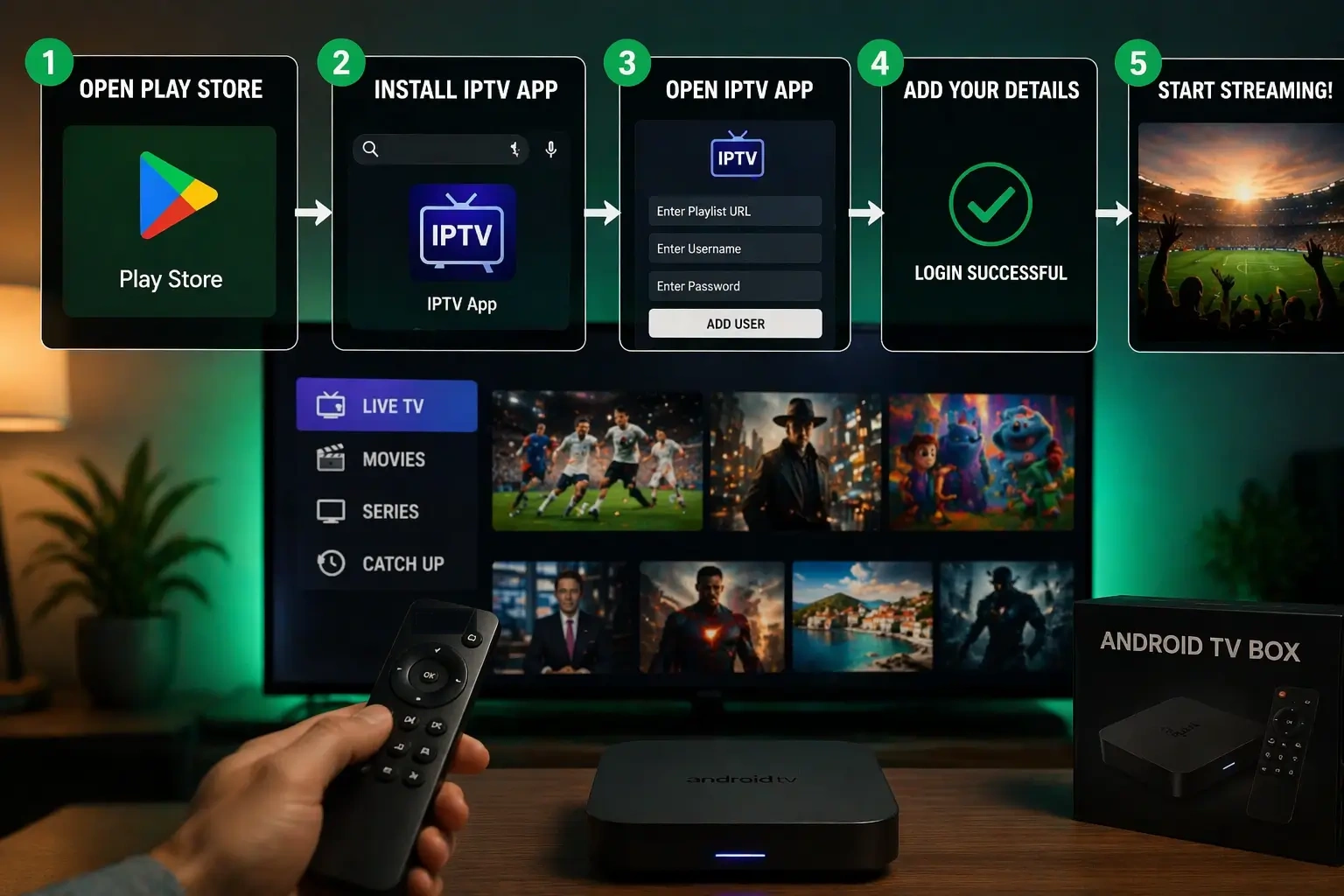
Configuring IPTV on an Android TV device takes under ten minutes, requiring only a compatible streaming player app, your login credentials, and quick playback adjustments. Android hardware is a favourite choice across the UK because of Google Play access, powerful processors, and simple user options. Streamers looking for high-quality british iptv feeds use this platform daily.
When you have acquired a reliable stream list, upgrade your home viewing by choosing a premium iptv subscription in the UK. using Xtream credentials or M3U connections. This practical walkthrough takes you through the step-by-step installation process.
Step 1: Prepare Your Android TV Box
Make sure your streaming device is properly configured before installing third-party streaming tools.
Hook up your Android TV Box to your television set using a high-speed HDMI cable.
Pair your box with a dependable Wi-Fi connection, or plug in an Ethernet cable for maximum stability.
Open your main device menu by visiting Settings > Device Preferences >
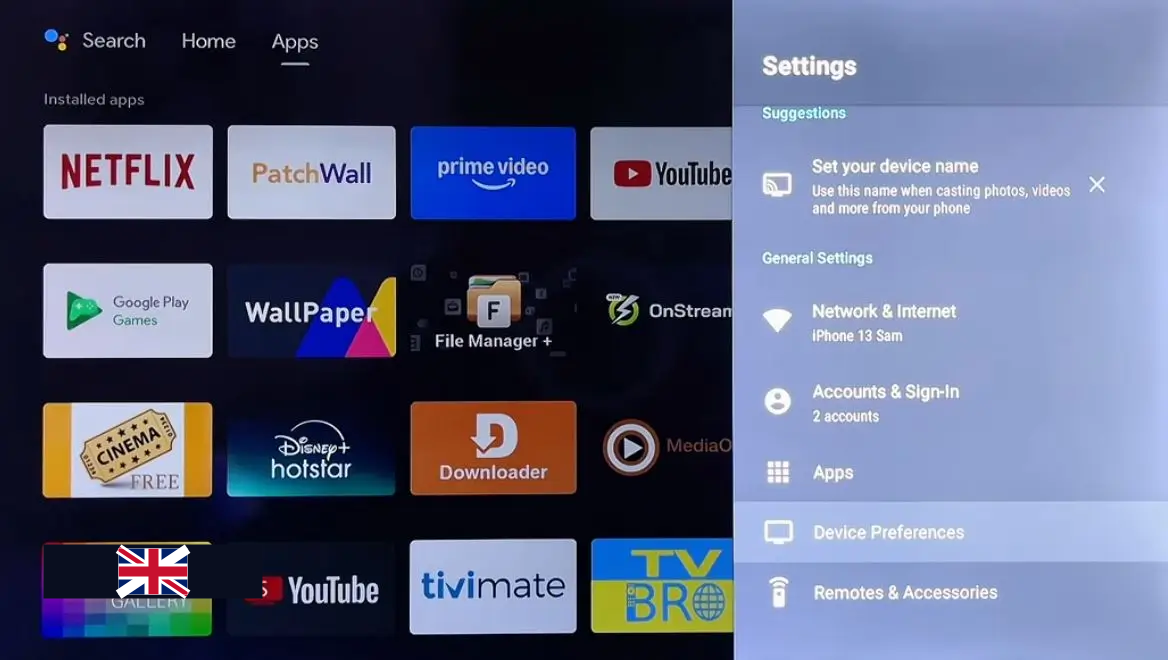
Next, scroll down and click on Security & Restrictions.
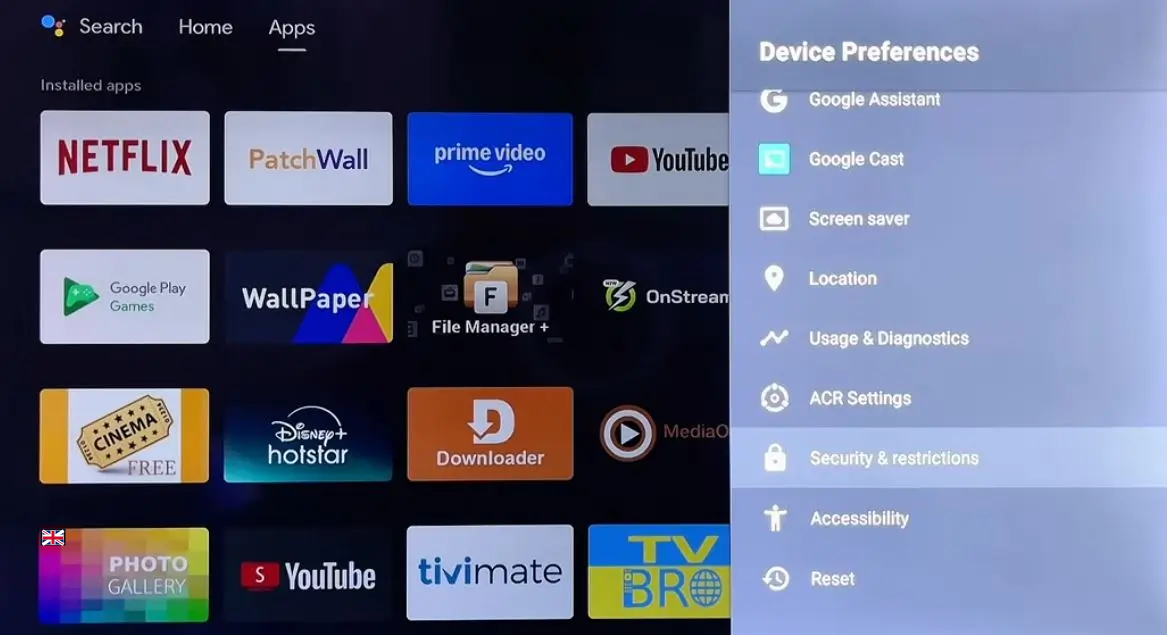
Turn on the Unknown Sources toggle to permit side-loading of applications.
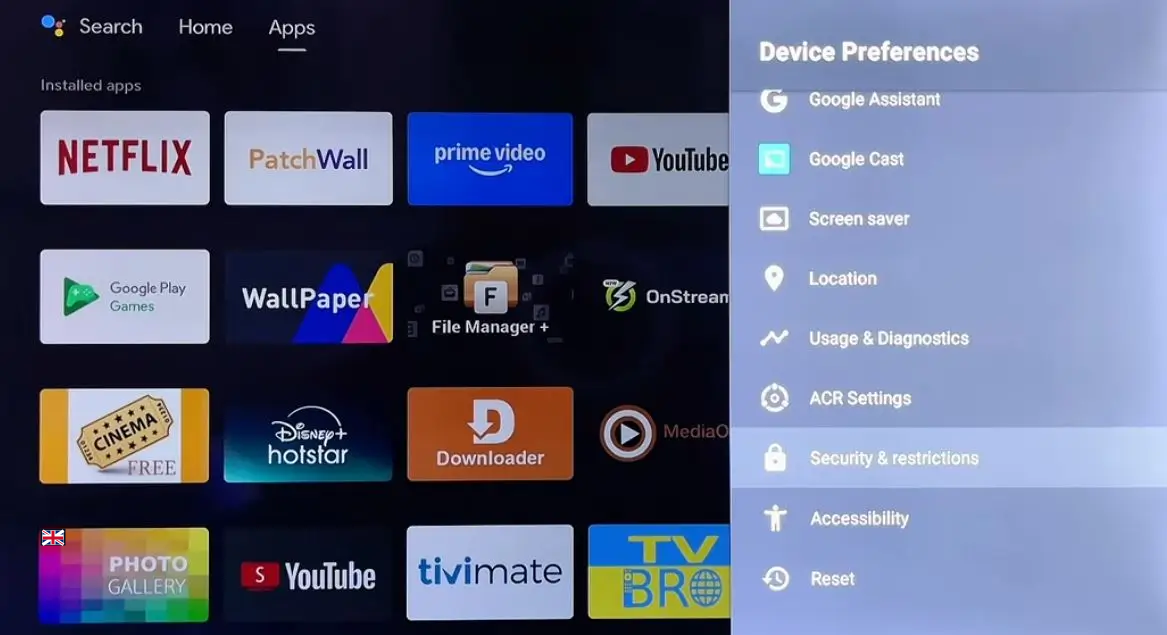
Verify that your set-top box retains at least 1GB of internal storage space.
Download any available operating system firmware updates to guarantee smooth application performance.
Reboot your box so all configuration adjustments take effect cleanly.
Step 2: Download and Install an IPTV Player App
A dedicated media player software is required to decode and play your live streaming playlists.
Launch the official Google Play Store application directly from your main interface.
Search for top-rated applications like IPTV Smarters Pro, TiviMate, or OTT Navigator.
Pick your preferred application and press the Install button.
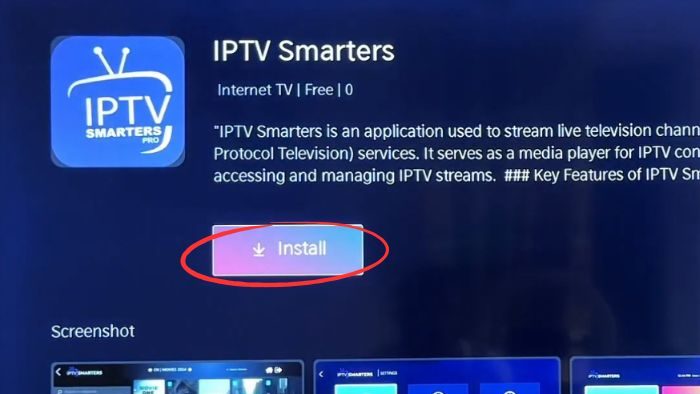
Allow a moment for your streaming app download to complete.
If the tool isn't in your regional app store, download the APK using the Downloader app from AFTVnews.
Once installed, you will find the app icon inside your main application grid.
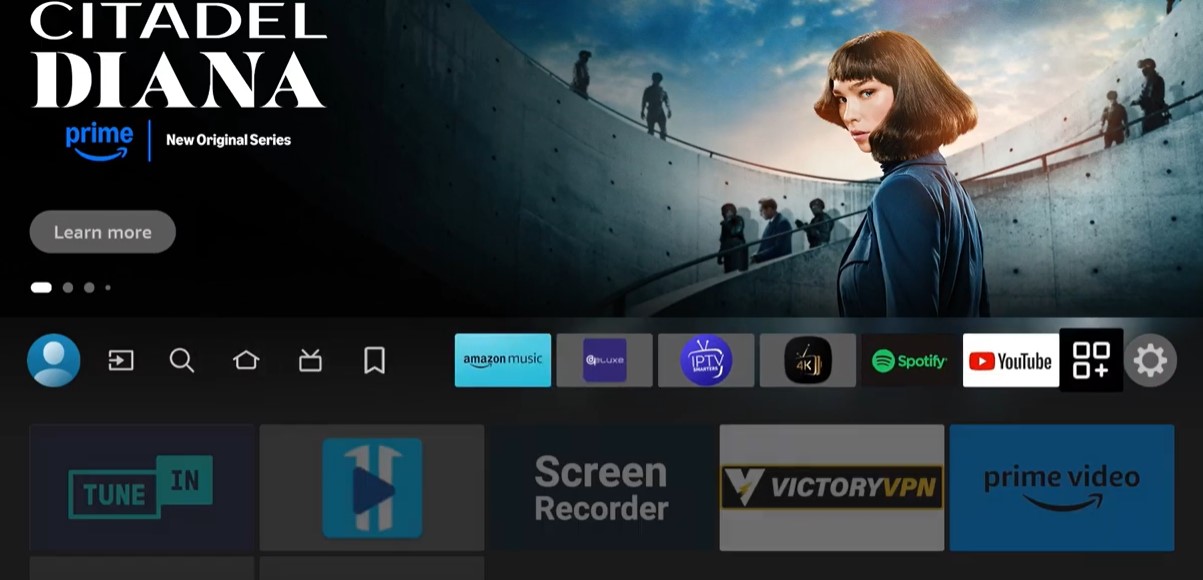
Hold off on opening the software until your account information is ready.
Step 3: Gather Your IPTV Subscription Details
Your service provider will issue specific account credentials necessary to activate live channels.
Open the confirmation message or setup email sent by your service provider.
Locate the M3U URL web address, which ends with an .m3u or .m3u8 extension.
Alternatively, collect your Xtream Codes parameters: your Server URL, Username, and Password.
Certain players can also authenticate via a MAC address portal system.
Copy these long strings precisely or keep your mobile device nearby for easy reference.
Double-check every character because typing errors will trigger connection failures.
If you need help finding top-tier options for british iptv content, check recent reviews to see if service upgrades fit your setup in 2026.
Step 4: Configure the IPTV App With Your Credentials
Now you can enter your provider login details into your newly installed player app.
Start up the media player software you placed on your Android TV box earlier.
Select the prompt labeled Add New User or Add Playlist inside the home interface.
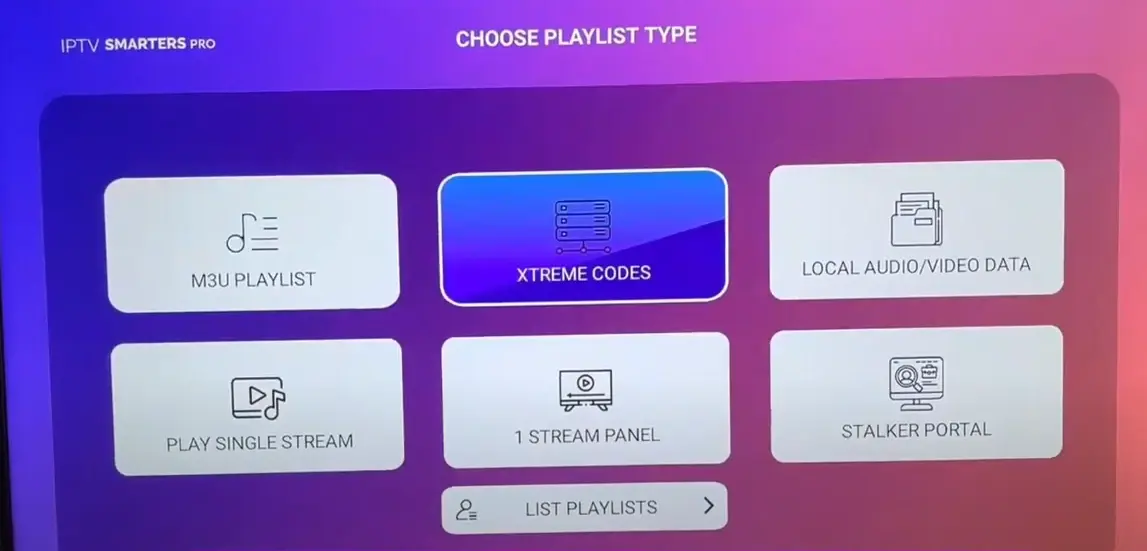
Pick your preferred login format: Xtream Codes API (strongly suggested) or an M3U URL.
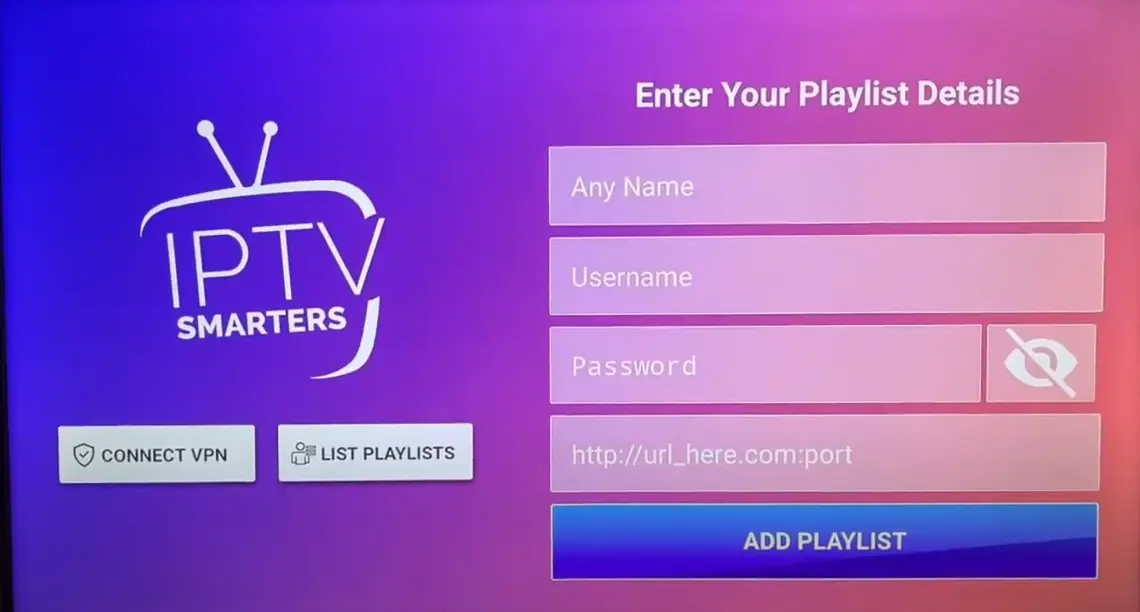
For Xtream Codes: Type your assigned Server URL, Username, and Password into the designated boxes.
For M3U Links: Paste your complete playlist web link directly into the address box.
Type a clear label such as "My IPTV" so you can recognize the stream list easily.
Click Add User or Login and wait while the application connects to the server.
The app will now pull in over 18,000+ live channels along with 40,000+ movies and series alongside the EPG guide.
Step 5: Customize Settings and Start Watching
Applying slight adjustments inside your player settings will ensure high-grade streaming performance.
Head over to the internal Settings tab within your chosen streaming application.
Select the primary Video Player engine — choosing ExoPlayer yields excellent stability on Android devices.
Switch on Auto-start on boot if you want your TV box to launch the channel menu on startup.
Synchronise the EPG timezone options to UK local time to display accurate program listings.
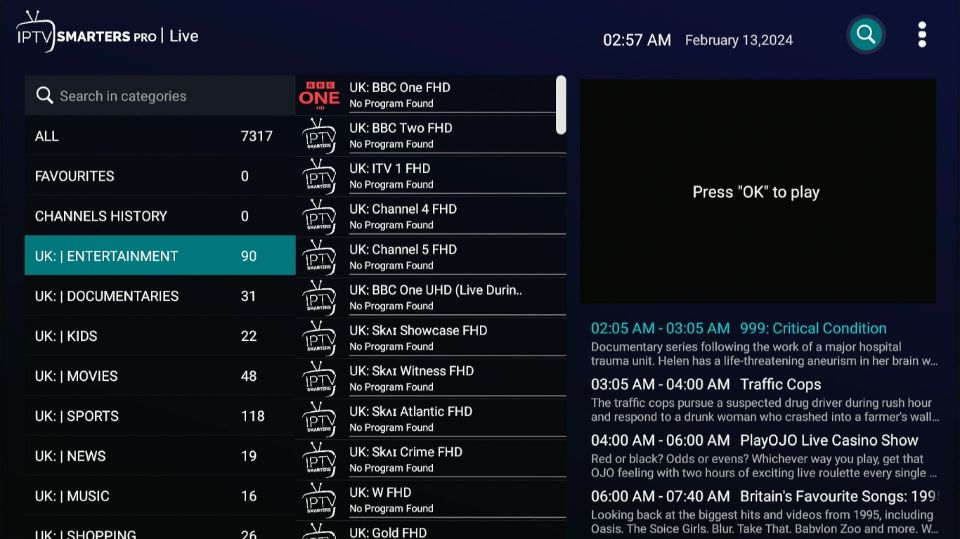
Select an appropriate playback resolution: Auto, HD, or 4K depending on your internet bandwidth.
Bookmark your most-watched channels into a dedicated favorites list for fast navigation.
Test several live streams and video-on-demand titles to verify stable playback.
Sit back and enjoy reliable british iptv entertainment seamlessly on your big screen, with multi-device support that also works on Firestick, Android TV, Smart TV, iOS, Windows.
Frequently Asked Questions
Which IPTV app is best for Android TV Box?
TiviMate and IPTV Smarters Pro rank among the finest options for slick navigation and high reliability. For Amazon streaming stick owners, read about the similar setup process for Firestick.
Why won't my IPTV channels load?
Confirm your network connectivity, double-check that your user login details are typed correctly, and ensure your account has not expired.
Do I need a VPN for IPTV on Android TV Box?
Using a VPN is optional, but it helps protect your data privacy and stops broadband providers from throttling speeds during live events.
Can I record live TV with IPTV on Android TV Box?
Yes, players like TiviMate provide built-in DVR features allowing you to record broadcasts if your set-top box has available storage.
How many devices can I use with one IPTV subscription?
Most streaming packages allow between 1 and 4 simultaneous streams depending on your specific subscription terms.
What internet speed do I need for smooth streaming?
We recommend at least 15-25 Mbps for steady HD video, while 4K streaming usually demands 50+ Mbps.
Why is my IPTV buffering on Android TV Box?
Persistent buffering often stems from network slowdowns, server congestion, or multiple bandwidth-heavy devices active on your home Wi-Fi.
Your free trial login works in every app in this article. Twelve hours of the full service, no card, then choose a plan or stop.
- No credit card
- Login by email in minutes
- Setup guides for every device
