
Optimising IPTV Smarters Pro: Manage Favourites & History
Keeping your streaming interface organised is essential for a smooth viewing experience on your favourite devices. This guide explains how to manage your history and favourites to make your british iptv app faster in 2026.

On this page (11)
- Step 1: Open the Device Configuration Menu
- Step 2: Navigate to the App Management Section
- Step 3: Select the IPTV Smarters Pro App
- Step 4: Run the Cache Removal Process
- Step 5: Launch the App and Sign In
- Step 6: Customise Your Channel Groups
- Step 7: Verify the Clean Interface
- Bonus: Enable Automatic Cache Cleaning
- Tips for Maintaining a Fast Streaming Setup
- FAQ: Managing Your IPTV Smarters Pro Data
- Final Thoughts
To clean your usage logs on IPTV Smarters Pro, go to the device Settings, find Apps, select the player, and choose Clear Cache. This simple action removes recent activity and improves responsiveness for your british iptv account.
With a premium IPTV Subscription, your media library refreshes instantly after clearing temporary files. Our 2026 tutorial shows you how to tidy the interface and handle content efficiently.
Step 1: Open the Device Configuration Menu
Start by going to the primary settings section of the hardware where you installed IPTV Smarters Pro. You must use the operating system's menu instead of the app's internal settings to fully wipe historical data.
Look for the cogwheel icon representing the settings dashboard on your Firestick, Android TV, or Smart TV. Make sure you have closed the streaming application completely so the system can release all stored temporary files for removal.
1- Go to the main home screen.
2- Locate the Settings cogwheel icon ⚙.
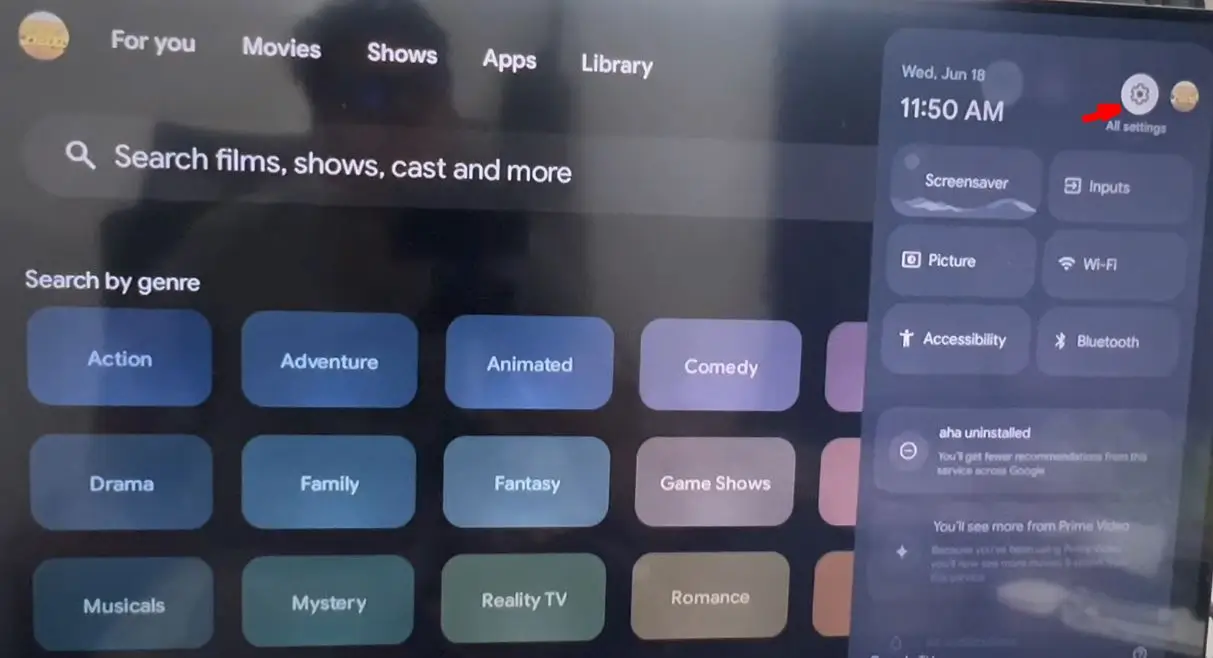
3- Select the menu and wait for it to load.
4- Ensure IPTV Smarters Pro is fully shut down.
5- Remain in this settings area for the following step.
Step 2: Navigate to the App Management Section
Next, locate the specific sub-menu for controlling installed software. Depending on the device you use, it will be named Apps, App Management, or Installed Applications.
This area allows you to manage the storage and data for every tool on your system. Finding the specific entry for your media player is essential for accessing the tools needed to delete your viewing history. Take care while scrolling.
1- Look through the list of system settings.
2- Click on the Apps or Applications option.
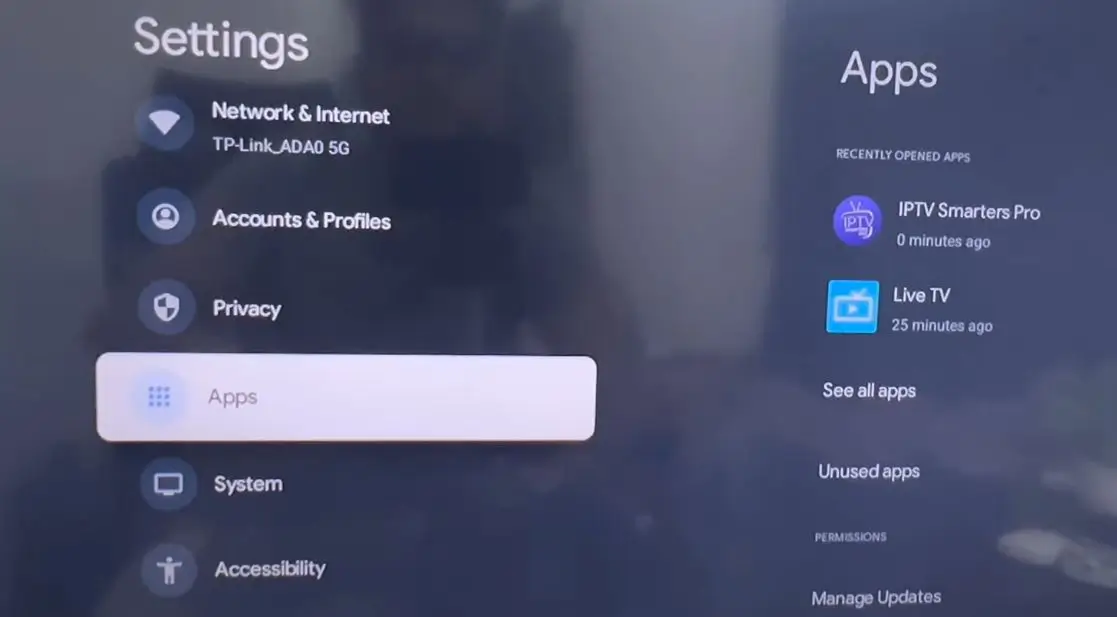
3- Wait for the full list of software to appear.
4- Avoid changing any settings for other installed tools.
Step 3: Select the IPTV Smarters Pro App
Scroll through the applications and click on the entry for IPTV Smarters Pro. If you are using a different player for your british iptv service, these instructions are usually identical across most Android platforms.
Choosing the correct application is vital so you don't reset the wrong software. Check the name and the icon carefully before clicking to prevent any accidental loss of data.
1- Look for the IPTV Smarters Pro logo.
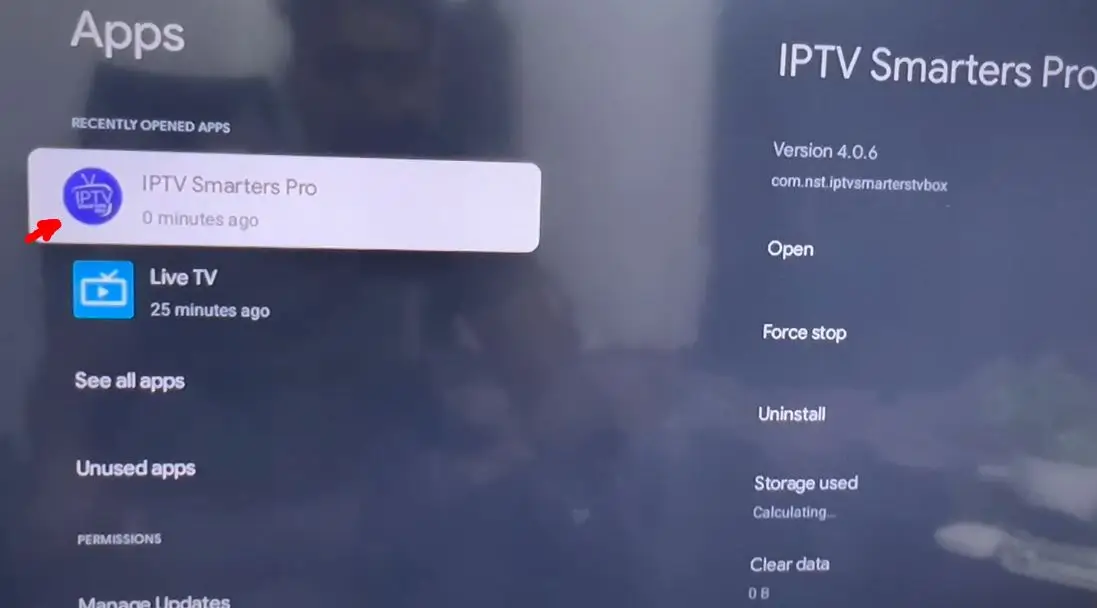
2- Click it to view the application info screen.
3- Select your main player if using an alternative.
4- Verify the app selection before moving forward.
5- Find the button for storage or maintenance options.
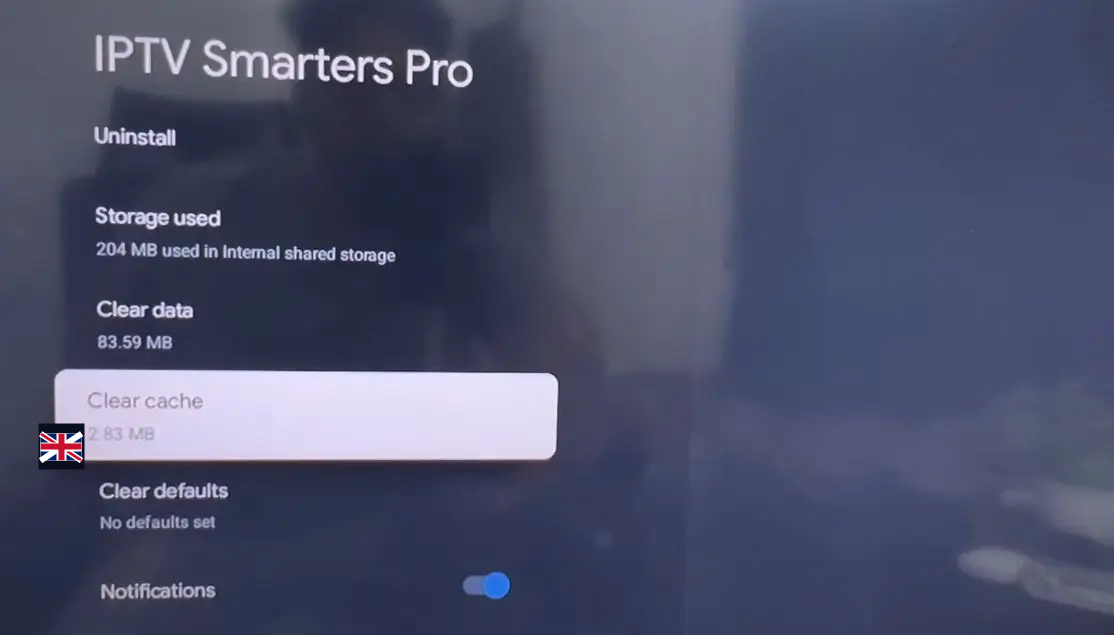
Step 4: Run the Cache Removal Process
This is the main task: select the Clear Cache option to delete your history logs, then confirm by clicking OK. This removes the "Recently Watched" list without affecting your subscription login details.
On certain TV brands, you might have to enter a Storage sub-menu to find these buttons. By clearing the cache, you ensure the app interface starts with an empty history row while keeping your settings intact.
1- Open the Storage menu if it is displayed.
2- Press the button to Clear Cache.
3- Confirm the action if a prompt appears.
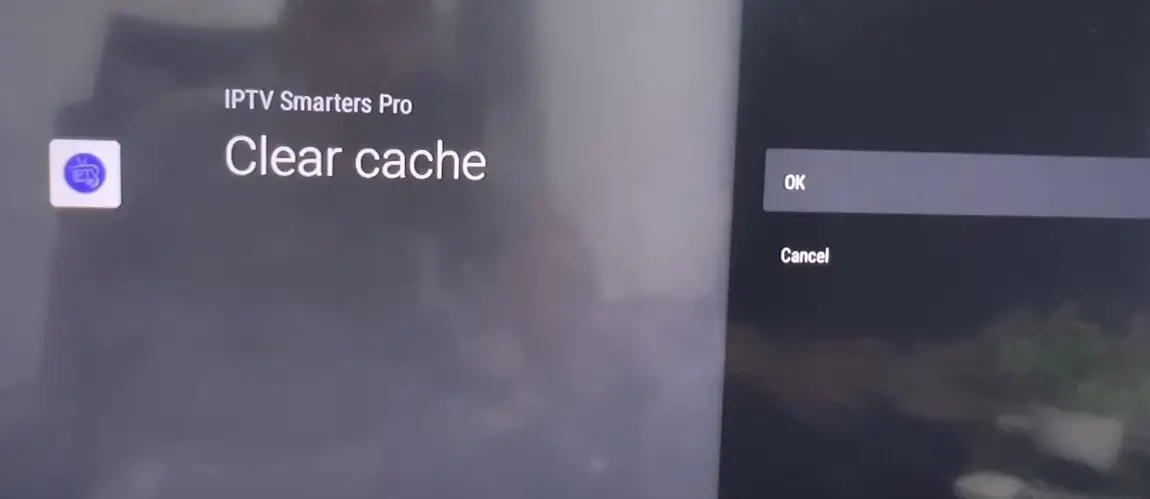
4- Watch for the cache size to drop to zero.
5- Do not click Clear Data unless you want to log in again.
Step 5: Launch the App and Sign In
Once the cache is cleared, open the application again. You might find you need to enter your details again, which is a common security protocol following a system cleanup in 2026.
Logging back in ensures the player fetches the newest channel list from the server. Keep your details ready to make this transition quick for your 18,000+ channels.
Your dashboard will now be clean and much faster to navigate. For further assistance, check our tutorial on how to set up and log in to IPTV on a Smart TV.
1- Start the app from your device home screen.
2- Enter your account credentials if requested.
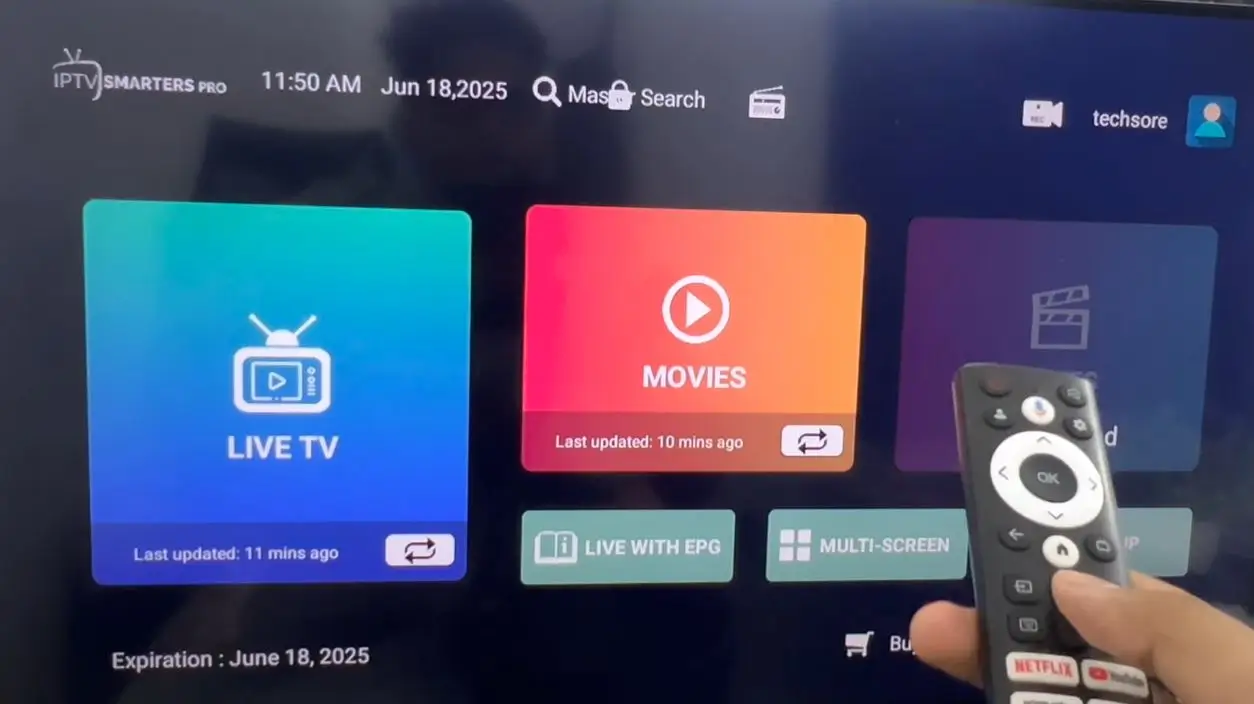
3- Allow the 18,000+ channels to load properly.
4- Check that the viewing history is now empty.
5- Keep your login information for the next time.
Step 6: Customise Your Channel Groups
Apart from history, you can tidy the interface by managing your categories. While you can't delete individual channels, you can hide entire content groups to simplify your british iptv experience.
Using parental locks is a perfect way to remove unwanted folders from your view. This keeps your layout focused on the 40,000+ movies and series you actually watch on your Android TV or Firestick.
1- Go to the internal Settings within the app.
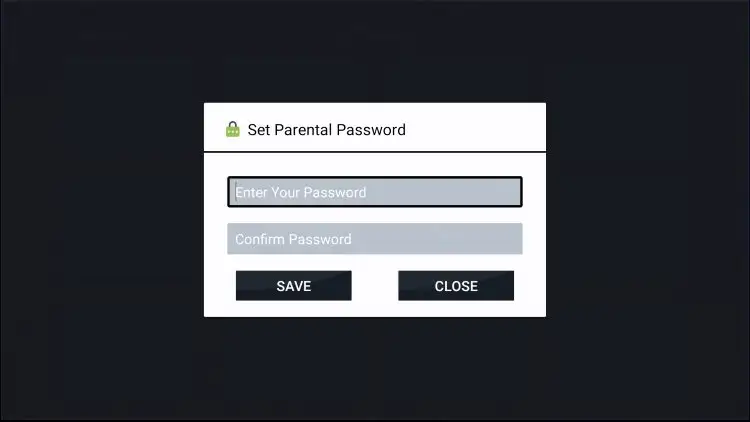
2- Select Parental Control to manage group visibility.
3- Create or enter your security PIN code.
4- Switch off any categories you wish to hide.
5- Refresh the channel list to see the changes.
Step 7: Verify the Clean Interface
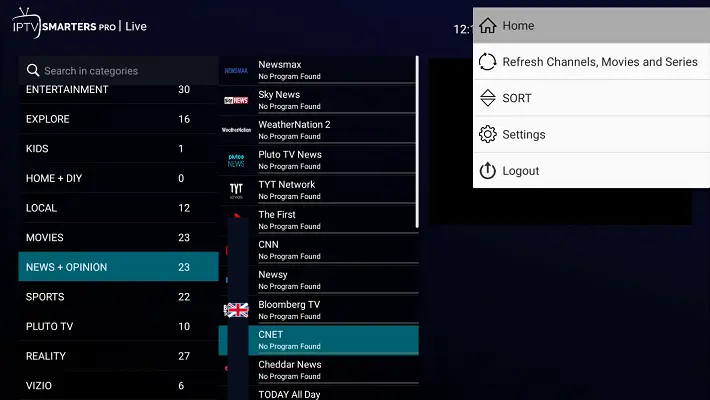
The last step is to make sure all previous activity logs are gone. IPTV Smarters Pro shows history in specific rows within the Live and VOD sections, so verify those areas.
A quick reboot of the hardware can help the new settings take effect. If old entries still appear, a second cache clear usually fixes the problem on Windows or iOS devices.
1- Repeat the cache clearing step if data persists.
2- Restart your streaming device completely.
3- Check the Recently Watched section in Live TV.
4- Look at the Movie category for any saved logs.
5- Confirm that all history has been wiped.
6- Ensure that hidden groups remain out of sight.
Bonus: Enable Automatic Cache Cleaning
You can make things easier by letting the software handle its own temporary data. Look for an automated setting that clears the backlog every time you close the app.
This option is usually found in the General or Automation area of the internal settings. If your version doesn't have it, manual clearing is still the best method in 2026.
1- Open the IPTV Smarters Pro internal Settings.
2- Look for the Automation or General options.
3- Find the switch for cache management.
4- Enable the Auto Clear Cache feature.
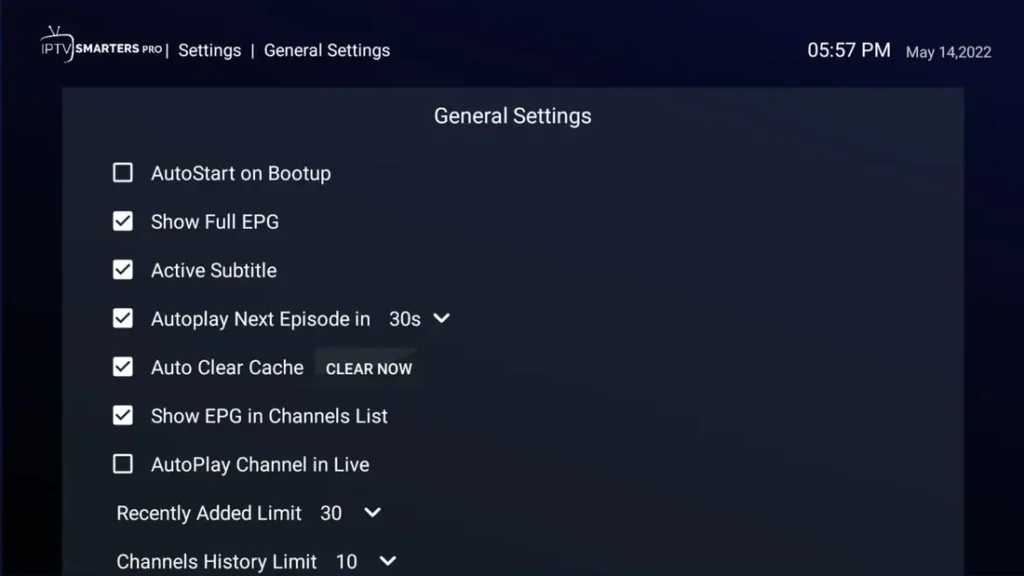
5- Exit the menu to confirm your selection.
6- The app will now perform regular self-cleaning.
Tips for Maintaining a Fast Streaming Setup
Keeping a clean setup ensures your streaming is always private and responsive. These habits prevent the player from getting slow due to old data during 2026.
- Perform a cache clear weekly for shared devices.
- Always keep a backup of your login details.
- Use the Favourites list for your most-watched channels.
- Force stop the application to free up memory.
- Install software updates as soon as they arrive.
- Refresh your playlist to see new VOD additions.
- Keep your provider's support info for quick help.
FAQ: Managing Your IPTV Smarters Pro Data
How do I find the history delete button?
There isn't a specific button inside the application; you must use your Firestick or Android system settings to clear the cache for that app.
Is my playlist safe if I clear the cache?
Yes, your channel list is secure. Only temporary data like thumbnails and history are deleted during a cache clear on your british iptv service.
What does the Clear Data option do?
This will perform a full reset of the app. You will lose your login credentials and have to set up your account again.
Why do I need to log in again after a cleanup?
In some versions, clearing system data logs you out for security. Simply re-enter your details to resume watching.
Can I delete individual channels?
You cannot remove them one by one, but you can hide entire categories using the Parental Control menu.
How frequently should I clean the app?
Most viewers find that a monthly cleanup keeps the app running smoothly on Smart TVs and Firesticks.
Should I just reinstall the app?
It is almost never needed. Clearing the cache is much quicker and provides the same benefit for removing viewing history.
Final Thoughts
Clearing your usage history on IPTV Smarters Pro is a simple matter of a system cache purge: visit Settings, choose Apps, find the player, and click Clear Cache. This keeps your interface private and snappy.
By following this guide, you can manage 18,000+ channels and 40,000+ movies without old logs slowing you down. Routine maintenance ensures a premium, organised viewing experience on all devices throughout 2026.
Your free trial login works in every app in this article. Twelve hours of the full service, no card, then choose a plan or stop.
- No credit card
- Login by email in minutes
- Setup guides for every device
